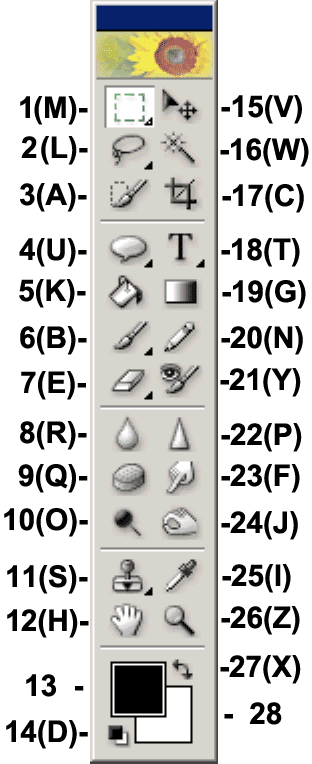
Clicking in the image when the zoom tool has been selected
in the toolbox will increase or decrease the magnification
of the image by a preset amount. The change will be centered
on the spot clicked. Repeated clicking will continue to
increase or decrease the magnification. If you reach the
maximum amount available, the center of the zoom tool's
cursor will appear empty.
To reduce magnification, hold down the Alt key and click
in the image, or choose the minus icon in the tool’s options
bar. Decreases will be in preset increments. Repeated clicking
will reduce the image farther.
To temporarily access the zoom tool while using other tools,
press Ctrl-spacebar to zoom in (increase magnification),
or Alt-Spacebar to zoom out.
Note - if your Alt key does not appear to be working
in Elements, you may have another program running in the
background that has taken over that key. GuruNet (Atomica)
and FlySwat are two such applications. Uninstall them, or
reassign the hot key in those programs to regain use of
the Alt key in Elements.
You can drag a selection rectangle with the zoom tool,
and that part of the image will be magnified to fill the
screen. This is my preferred way of zooming.
Double clicking the zoom tool icon in the toolbox will
cause image magnification to go to 100 %.
Other ways to change image magnification include using
the Navigator palette, or typing an exact
amount in the box at the extreme left corner of the status
bar, and then pressing Enter. Double clicking the Hand tool's icon in the toolbox will cause the
image to resize to fill its window.
The keyboard shortcut for this tool is the letter Z.
|
 BreBru.com