- History
- Telnet was the FIRST way that computers connected using the Internet. When the Internet first began, there was only Telnet!
- Much--but not all--of Telnet was eventually replaced by Gopher menus (which we'll learn about in a future lesson).
- Then along came the World Wide Web with fancy clients like Mosaic, Netscape, and Internet Explorer. The WWW also replaced much of the functionality of Telnet and some of Gopher too.
- So why use Telnet?
- Much information on the Internet is still only accessible using Telnet.
- Telnet also allows people with authorized accounts and passwords to operate a computer remotely, that is, using a different computer. This is called remote login.
- Remote login is something you can't do using Gopher or the WWW!
-
What kind of services are still accessible only through Telnet?
- Public Libraries
- What are some other common uses of Telnet?
- Search large databases available on corporate, government, and university computers.
- What are the advantages of using Telnet?
- We can run powerful software that our own computer either doesn't have or isn't able to run.
- We can access large and extensive databases (files that contain organized information) that our own computer might not be able to hold.
- Why does the Telnet program look so plain?
- When the Internet first started, all people wanted to do was connect to remote computers, find information, and send and receive files. To do this, they invented Telnet which emulates (or, imitates) a dumb terminal. (A dumb terminal is a monitor and keyboard that are hooked up to a mainframe computer. It usually can only display text.)
- Many mainframe computers today still have dumb terminals. When we connect to them using Telnet, we see the same thing that is displayed on their dumb terminals.
- Two kinds of dumb terminals are VT-100 and TN3270.
- Our Windows 98 Telnet program emulates VT-100 only.
- If you try to connect to a computer that requires a TN3270 terminal, the computer may refuse to accept the connection.
- To use TN3270, you must obtain a separate terminal emulation program. Such programs are available at computer stores and by downloading from the Internet.
- How to start Telnet
- Automatically
- The easiest way to start a Telnet session is to click on a Gopher link or a WWW hyperlink that begins with "telnet://".
- Manually
- From the Windows 98 Start menu, select Run, then type "telnet" followed by a space and the URL or IP address of the computer you want to access remotely.
- From Netscape, type "telnet://" followed by the URL or IP address
of the computer you want to access remotely--with no space between.
- For example, to access Public Education Network computer from Netscape, type "telnet://pen.k12.tx.us".
- In some cases, you will also need a port number. Port numbers are used when a single computer is running more than one Telnet activity. The port number selects the activity. If you get a message that you need a port number and don't have one, try the standard Telnet port: 23. To add a port number to your telnet address, just type a colon (:) followed by the port number. Example: "telnet://pen.k12.tx.us:23".
- Automatically
- How to log in to a Telnet server
- A Telnet server is a computer that hosts a Telnet session to which you can connect.
- Once connected, you will usually need a username and password (meaning you have an account). The process of typing in your username and password is called logging in. If you don't have an account, try using "guest" as username and "guest" as password. Many computers reserve these words to indicate a visitor and will give you limited viewing privileges. Others allow visitors, but will give you special instructions as to how to log in.
- Sometimes a Telnet server will grant you a new account, asking you your name, then telling you your username and assigning you a password or asking you to select your own password. If this happens, write down your username and password so that when you return you can log in again without being turned away.
- How to use Telnet
- First of all, you can expect only text, no color, and no fancy fonts.
- Second, you can only use keyboard commands to access functions.
- Most (but not all) versions of Telnet work the same way and use the same set of commands.
- The important thing to remember is that you must READ all directions provided in order to make use good of Telnet.
- How to view information that has scrolled off
the screen
- Use the scrollbar on the right of the Telnet window.
- If the scrollbar won't let you view enough information, you will need to increase the number of lines that are being saved at a time.
- To do this, from the main Telnet window select Terminal, then Preferences.
- The Terminal Preferences dialog box will appear.
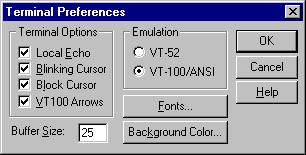
- The number in the Buffer Size box is the number of lines that is being saved at a time. Increase this number by typing a new one and clicking on OK. Suggested numbers are 75 or 100. Usually a higher number is not needed.
- A second way to view scrolled information is to save everything
in a text file, which can be viewed later by a word processor.
- This process is called capturing or logging.
- To do this, select Terminal, then Start Logging.
- A dialog box will prompt you for a file name. You should place your file in your own folder inside the student folder.
- After selecting your log file name, continue with your Telnet session.
- When finished, select Terminal, then Stop Logging.
- You can now view a record of your entire session using a word processor such as Micrsoft Word or Notepad.
- Use the scrollbar on the right of the Telnet window.
- How to quit a Telnet session
- It is always best to exit or log off of the computer that you are accessing by Telnet BEFORE closing the Telnet program itself.
- To do this, follow the directions given to you on the various screens.
Back to This Lesson
Back to List of All Lessons